
With MessageLock, compressing your file attachments and encrypting your email messages is easy. We have prepared a short Windows Media online video to demonstrate the process of sending an encrypted message with MesageLock. Click here to view the demo.
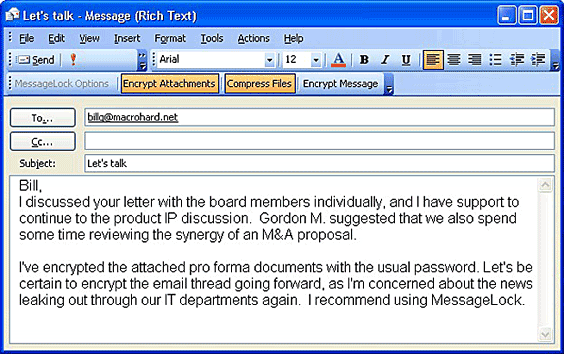
The easiest way to begin encrypting email is to toggle on the "Encrypt Message" button. To encrypt just the file attachments, click on the "Encrypt Attachments" button.
To compress the files and not encrypt them, toggle on the "Compress Files" button.

If this is the first time the sender has sent an encrypted message to this email address, MessageLock will ask for an outbound password.
MessageLock will remember this password the next time the sender wishes to encrypt to this email address.
Alternatively, you may enter several email address and passwords at one time. To do this, clickon the MessageLock Options button on Outlook's main toolbar.
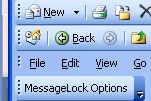
[note: Prior to MessageLock version 1.3, the Options button resides under Outlook's main Tools menu.]
Messagelock opens directly to the password entry screen (below).
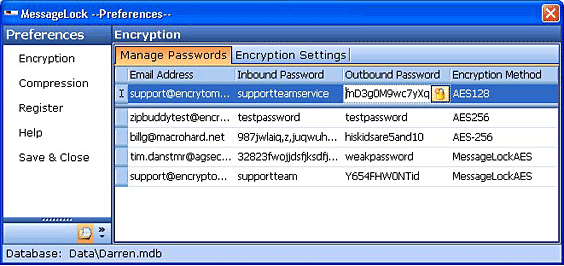
The user accesses the preferences window by selecting MessageLock from Outlook's Tools drop down list, and then entering the email address and passwords directly into the Manage Passwords screen.
To set default encryption settings, click on the "Encryption Settings" tab.
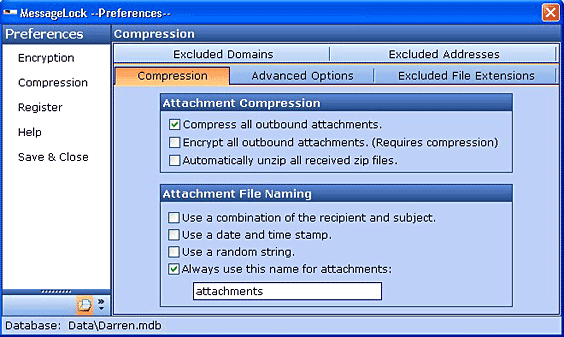
To set the default compression option, just select "Compression" from the left-hand navigation (see below).
Users can customize how MessageLock works, and define the situations under which MessageLock will apply compression. For example, you can enter in a list of domains or specific email addresses to which MessageLock will never apply encryption. You can exclude any file types from compression.
Below, you see the MessageLock toolbar installed in an outbound email. Users can use the toolbar to turn encryption and compression features on or off on a per-email basis.
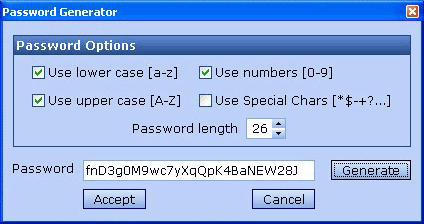
MessageLock's password generator can help users generate ultra-secure random passwords up to 79 characters in length.
We hope you've enjoyed your tour of MessageLock, and we invite you to try it for free.
Click here to download a free trial of MessageLock, or if you have any questions about how MessageLock operates, please open a support ticket and we will gladly respond.



© 2005, Encryptomatic LLC. Fargo, ND, USA.